

After a long wait, we’re kicking off 2026 by releasing today the first major update since 1.0.0, featuring important technical changes as well as some new features the community has been requesting for quite some time. Join us!
What’s new?
Refactoring the Activity Logs
One of Tainacan’s most important features is its ability to keep a record of changes to each item’s metadata, which administrators can track in the Activity lists.
These activity records are internally referred to as logs, and as useful as they are, they are also our “biggest Achilles’ heel.” That is because, in terms of implementation, they rely on a highly inadequate database strategy. Each Tainacan “log” currently occupies space in the same table where WordPress stores our items, collections, and posts, causing each and every change to metadata values to gradually slow down queries on the site!
This has been discussed countless times within our community and led us to completely overhaul the way these records are stored behind the scenes. It’s something we’ve wanted to do for many years, and we’re finally in a position to deliver a more suitable solution.
However, as with any major change, the adoption of this new way of saving Activities will be gradual. For now, this new feature will only be available to those who have access to the server to make some adjustments, which we detail below:
Starting with this version, those who wish to adopt the new structure can do so by setting the following constant in the wp-config.php file:
define( 'TAINACAN_USE_DEPRECATED_LOGS', false);When you do this, new activity records will be saved in the new table. However, the old records will remain in the old structure, which means you will no longer be able to see them. To ensure your database is cleaned up and the old records can be read alongside the new ones, we are working on a way to perform this migration. For now, the process will require running a command via WP CLI:
wp tainacan logs migrateAnd once the migration is complete, you can run:
wp tainacan logs purge-deprecatedto clear your database of the old version.
If you don’t have access to these more advanced server settings, don’t worry! We’ll soon be offering a secure way to perform this operation directly through your admin panel.
New “timeline” layout for the activities list
Whether or not you’ve completed the migration, you can already take advantage of some UI improvements we’ve made to Activities.
Currently, the screens and modals displaying the list of activity records have a table-like layout, similar to how Collections and Taxonomies are displayed. We decided to adapt this layout to provide something more appropriate for this type of data: a timeline.
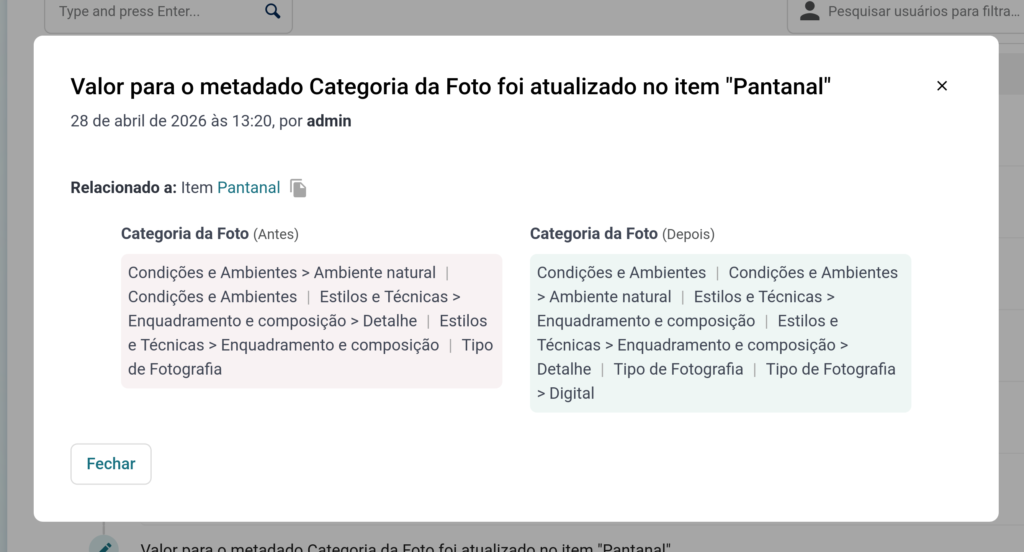
The timeline groups activities by day, uses icons to indicate the type of activity, provides more space for the activity description, and offers direct links to the modified object (item, metadata, collection, taxonomy). Additionally, by clicking the “View changes” button, you can see some changes in detail. This modal already existed before, but it has now been slightly improved:
Keep track of changes in a per-item-metadatum value basis
In case the migration has been completed on your site, a new feature is available! Today, activity logs can be viewed at three levels:
- Across the entire repository, via the repository’s “Activities” menu;
- Within a collection, via the “Activities” submenu of the current collection;
- Within a single item, via the modal that opens from a button at the bottom of the item’s page.
We are now adding a foruth level to the interface: a view of changes based on the item’s metadata. On the item page within the Tainacan Admin interface, you will see icons next to the metadata title indicating that there are changes to that item.
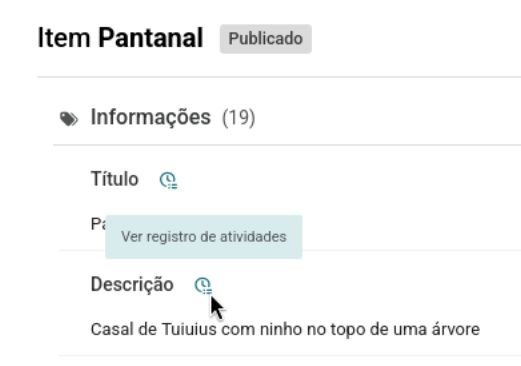
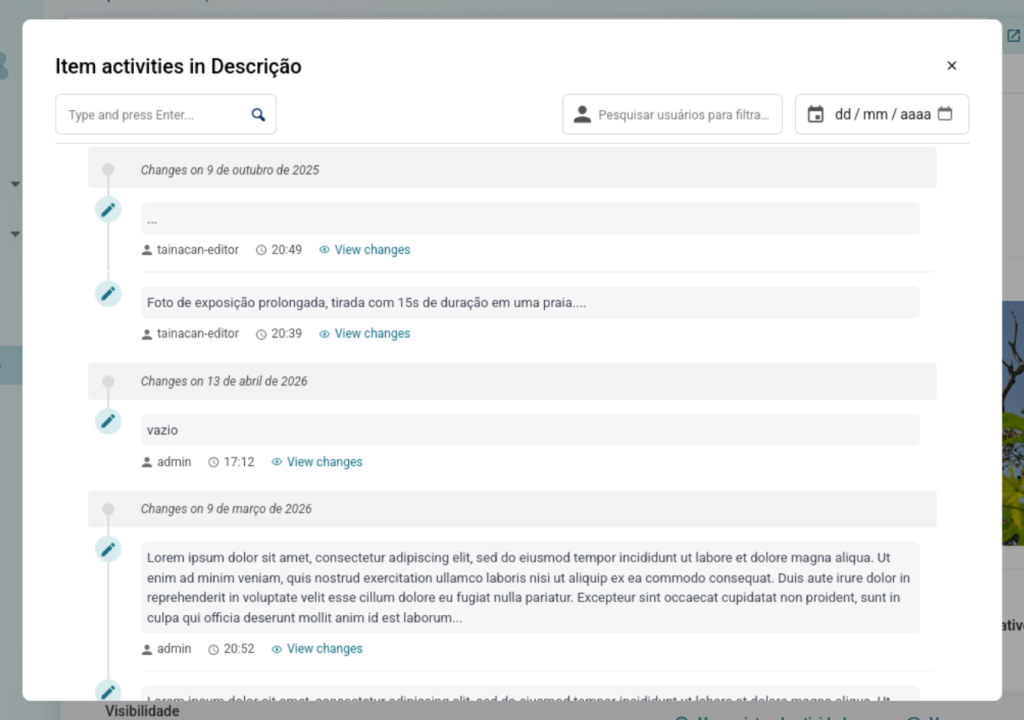
When you click on it, the activities modal opens, showing the list of values that metadata has had, who set it to that value, and when:
Item’s page term hierarchy
Changing the subject… if you’ve ever spent time carefully setting up a hierarchical taxonomy, you’ve surely felt frustrated to see that something defined this way…
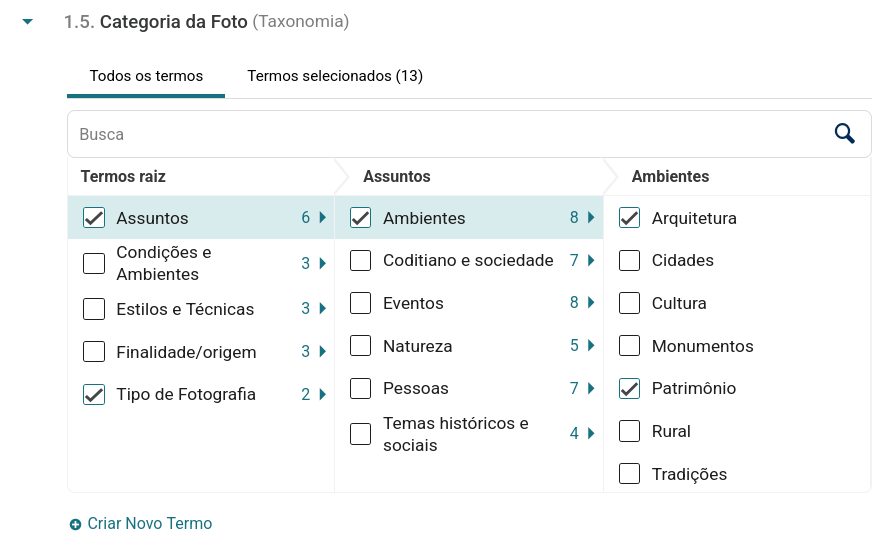
…appears like this on the item page:
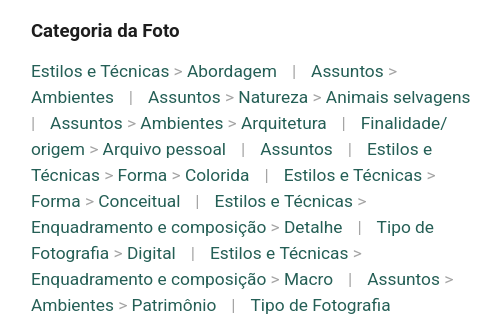
That’s right. We know what you were expecting… and it’s finally here:
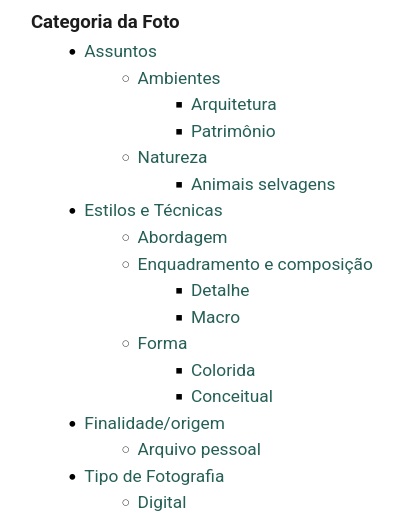
But what took so long after all?
We usually avoid including “presentation/appearance/design” options within the plugin. In theory, this should be the responsibility of the themes.
If you want your taxonomies to appear as buttons, with icons next to them and different colors for each term, well… maybe your theme should implement that.
But hierarchical lists are more complex.They pertain not only to the presentation but also to the structure of the HTML code that will display these terms (by nesting lists within lists), grouping values under their parent terms.
Therefore, we have added a new option to the metadata editing form, “HTML Formatting,” which allows you to display the values of a multi-valued metadata field as a “list” instead of the traditional “in-line” layout with the familiar “|” separators.
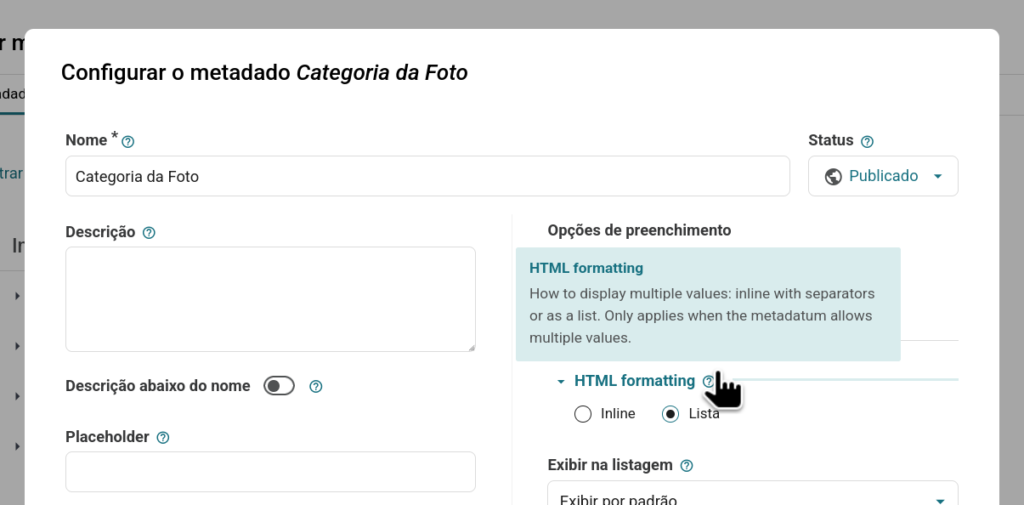
And “list” here, in practice, means that the HTML for this value will be wrapped in <ul><li> tags. This makes the code more semantically correct, including for search engines and screen readers. Also, for the sake of semantic consistency, even if “List” is enabled, the metadata will not be displayed as a list if there is only one value.
List formatting for Multi-valued metadata
While discussing the introduction of this feature for taxonomy metadata, we couldn’t overlook the possibility of applying this functionality to any other type of metadata. After all, if a metadata field has multiple values, it might make sense to display them as a list:
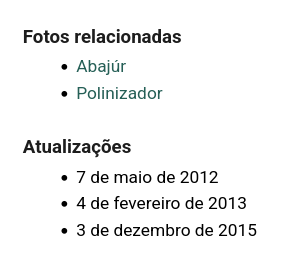
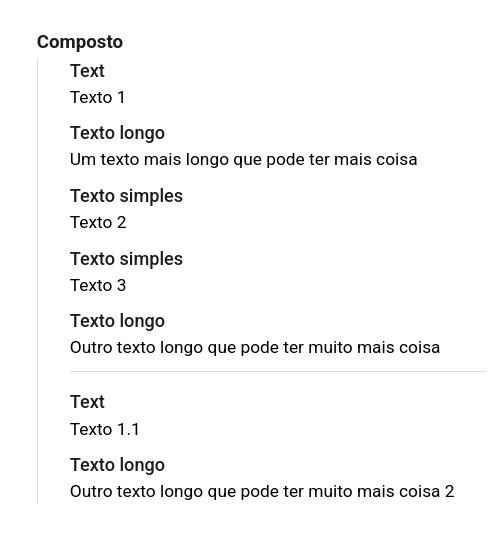
This is particularly useful when dealing with more complex metadata, whose values are presented almost as a “block.” For example, in the case of compound metadata, its values are already displayed almost as a list. But the way this list is presented—the representation of the hierarchy of values within it—is determined by the themes. For example, here is a compound metadata field in the Tainacan Interface:
The indentation shown here, the vertical line, and the separator appearing as a horizontal line instead of a vertical bar (“|“) are all thanks to the Tainacan Interface.
So how does this type of data fit into a theme that, by default, doesn’t support Tainacan?
Let’s see on TwentyTwentyFive:
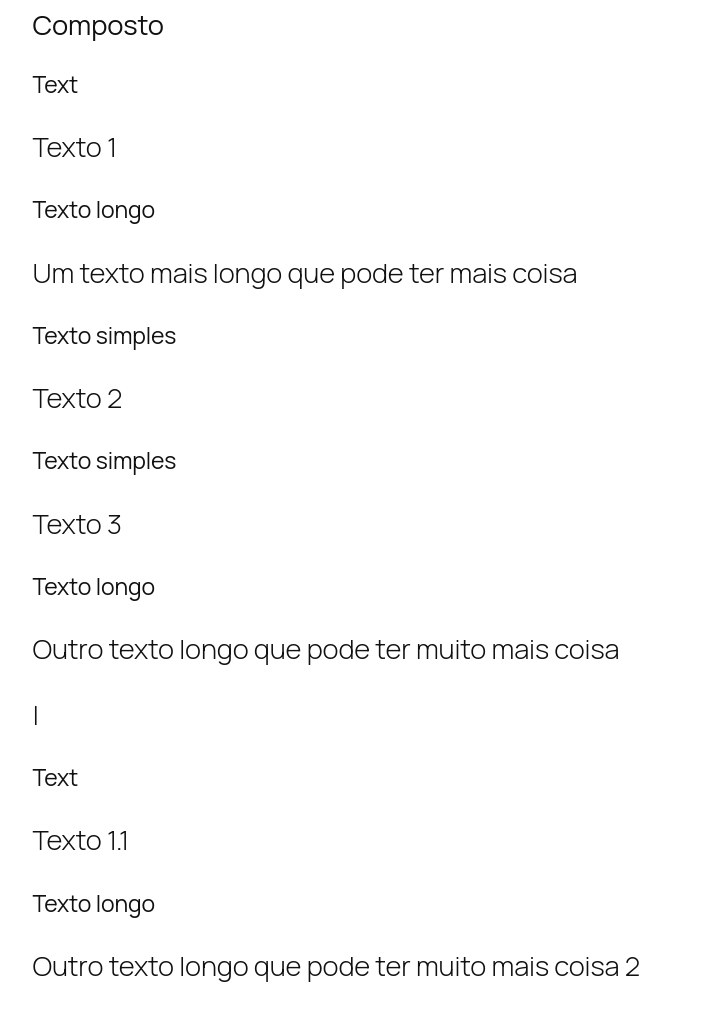
That’s pretty bad, isn’t it? That’s why we’ve agreed that values for multi-valued composite metadata should, by default, be displayed as a list. This will allow themes to display the information hierarchy in a more appropriate way, since every theme styles its HTML lists to some extent:
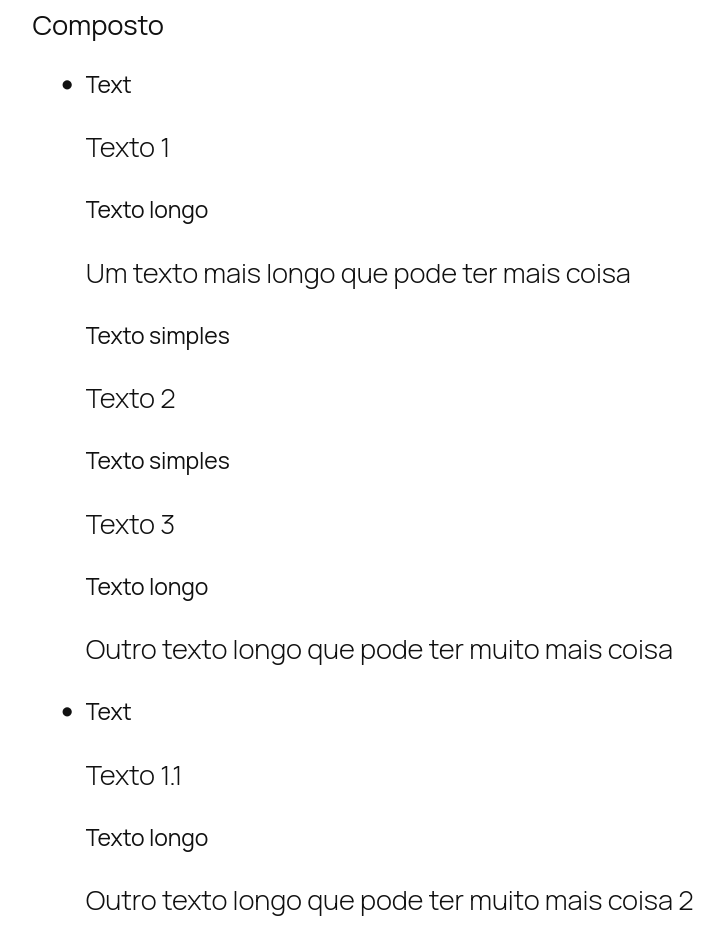
It’s true that not everyone likes these “dots.” They can be customized via CSS, so this will depend on each theme. For Tainacan Interface and Blocksy with the integration plugin, we’re already releasing versions that ensure this list is displayed with the previously applied settings (the sidebar, indentation, and horizontal separator) and without the dot.
Another scenario where the list view may be prominent is when displaying relationship metadata after enabling certain fields under the “Display related item metadata” option:
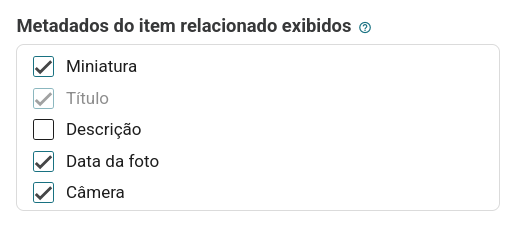
This option turns the metadata value into a “mini record” of the related item, rather than a simple link. Here again, themes that already support Tainacan can handle this. But others fall short. With the new option (which, in the case of Relationship metadata, must be enabled manually),
we’re moving from this:
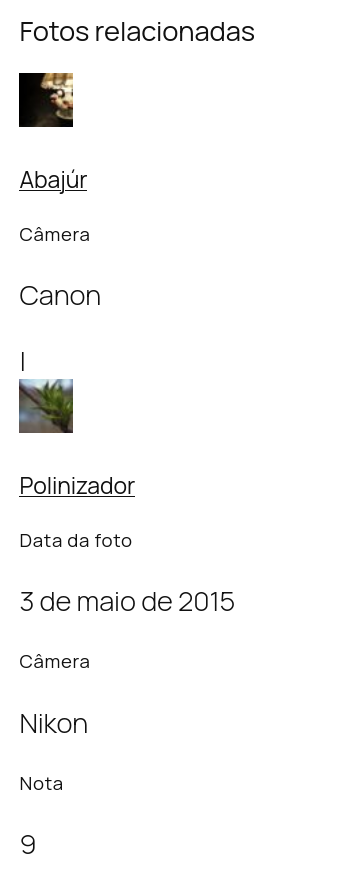
to this:
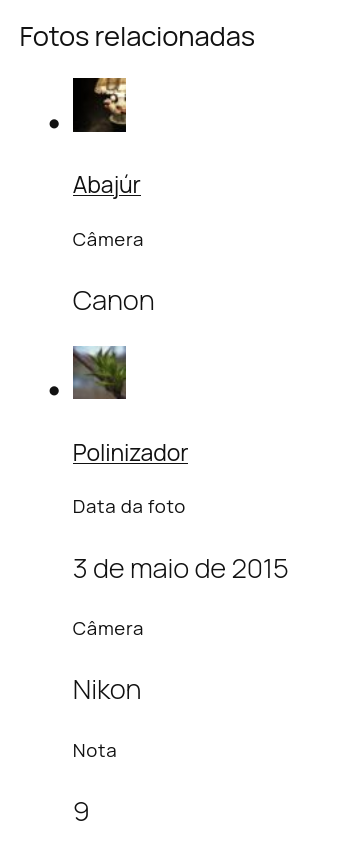
And here, of course, there are improvements that can be made (such as displaying the thumbnail and title together, with greater prominence). Once again, we would be entering into a debate about “plugin territory vs. theme territory.” But we consider the presentation of lists for multi-valued items in general to be an important step forward.
Settings section for Tainacan blocks
Taking advantage of our newest Plugin Settings screen, we have a new section featuring several features related to Tainacan’s Gutenberg blocks:
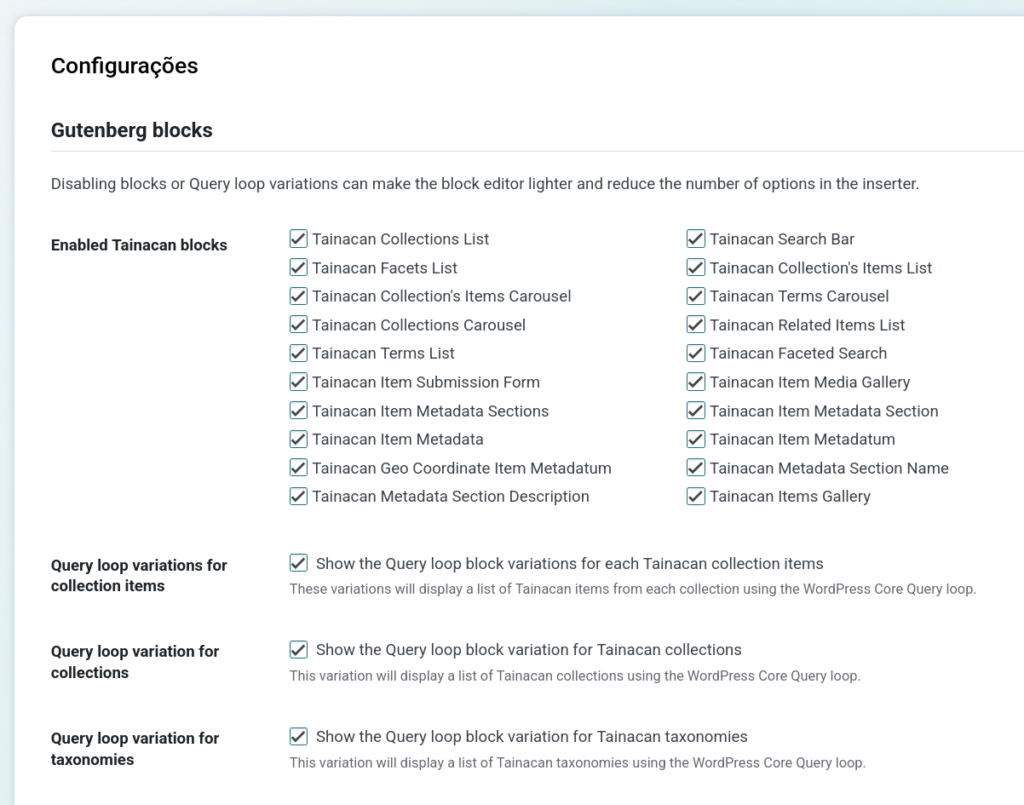
For now, this section allows you to disable blocks. Over the years, we’ve created new blocks, but not all of them are useful to users. Disabling a block reduces the number of resources loaded by your site, especially when editing pages or posts. This also makes it easier to find the blocks you want in the block insertion panel when editing pages.
This ability to “clear” the block editor is particularly useful if you don’t use another feature: Block Variations. This feature, introduced in version 0.20, allows you to quickly insert a preconfigured WordPress “Query Loop” block to list Collections, Taxonomies, or Items from a Tainacan collection.
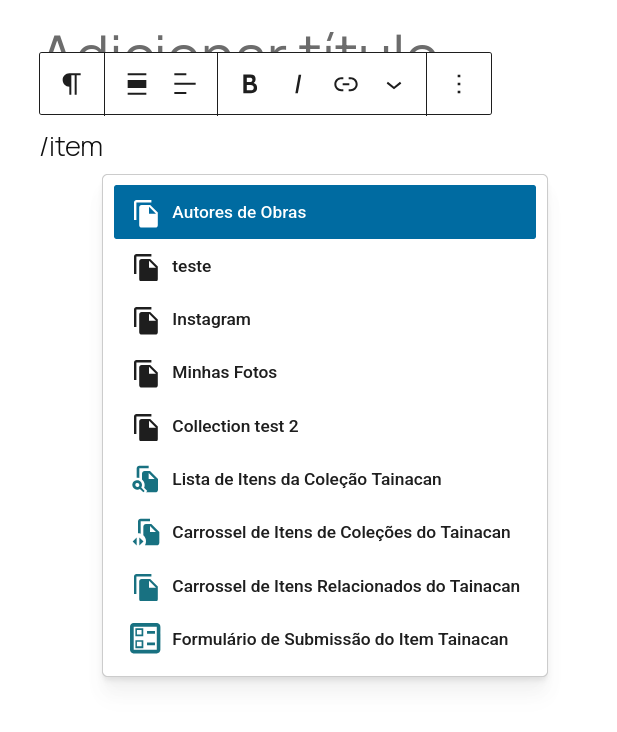
The WordPress Query Loop block typically offers interesting layout customization options and can be extended with plugins to add features such as scroll-based pagination. It’s the block used to display lists of items in Block-based themes (FSE). However, filtering through various post types to find the one you want from your collection can be tedious, and that’s exactly what Block Variation does for you.
Ultimately, it’s a “niche” feature that can clutter your block add-on, since when you search for “items,” you’ll see the name of each of your collections listed as a “Query Loop Block Variation” option. The variation even appears before Tainacan’s standard blocks!
That’s why we’re also offering these dedicated options on the settings screen to disable the variations if you don’t use them.
Improvements
Tainacan in German 🇩🇪
Tainacan is now officially translated to German! That’s no small feat; German speakers account for about 5.6% of WordPress users registered on wp.org. We’d like to extend our heartfelt thanks to user Ralf Hilgenstock, who is doing an incredible job translating this website and reviewing various English strings. If you’re from Germany and would like to join him in building this branch of the community, please leave a comment on this thread.
Links and Buttons colors in Tainacan blocks
Taking advantage of a feature available in the latest versions of Gutenberg, today we’re introducing another customization option for Tainacan blocks. When you go to the “Styles” tab, under the “Color” section, blocks that contain buttons and links—such as Carousels—will have options to set the background and text colors. Previously, only text and background colors were available, so changing the appearance of buttons was entirely up to the theme.
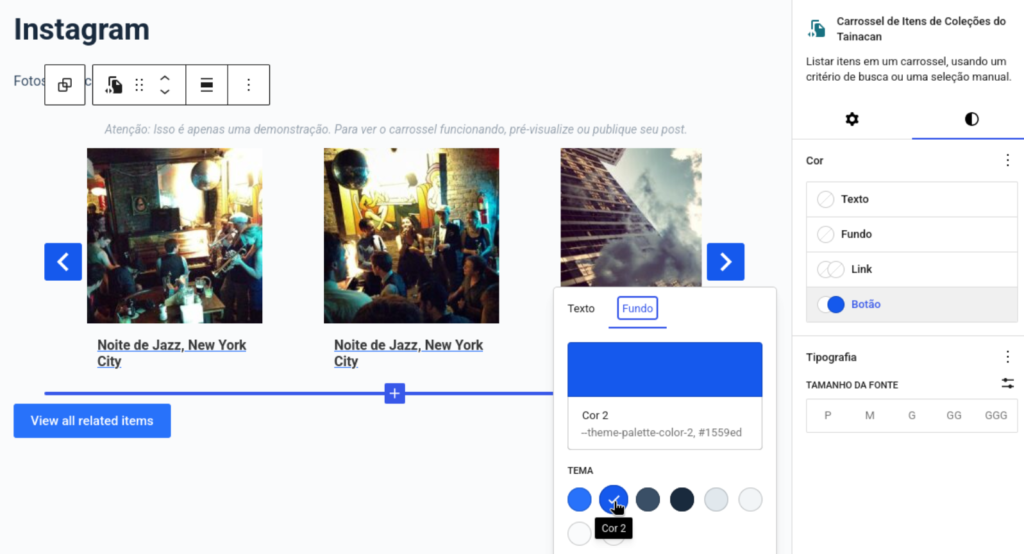
And speaking of the carousel block, you may notice some adjustments to the spacing. We’ve been revising its CSS rules to allow the use of arrows within the carousel—something that themes like Tainá already did by default. This should also slightly improve the responsiveness of these navigation buttons on mobile screens.
More accessibility adjustments
We continue our work on updating various components to provide better support for users who rely on screen readers. This version includes a few adjustments:
- Several fixes have been made to the Media Gallery (which displays the document and attachments). Among these is the removal of carousel and list elements that contain only a single item, improving the HTML semantics and reducing misleading announcements for screen readers;
- Various improvements to the Autocomplete and Taginput components, with more appropriate use of the
listandlistbox roles, as well asaria-controlsandaria-expanded; - Restored keyboard focus to the original filter when filter modals are applied;
- Restored focus to the original buttons when an element was triggered from a dropdown item that was itself triggered by a button, and in various other modals throughout the interface;
- Further accessibility improvements to icons that were being announced by screen readers;
Other enhancements
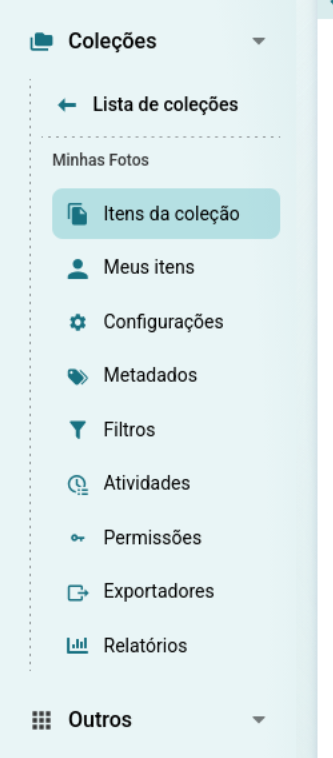
- Following a discussion on the community forum, we decided to add more visual cues to indicate the hierarchy of menus within a collection. This is achieved using a lighter font, left padding, and a line above the collection tab;
- Removal of attachments when items are permanently deleted—this new default behavior should reduce the space taken up by unwanted files;
- Report charts are now generated at three times larger the size when exported as
.pngfiles; - Improved responsiveness in some of the blocks on the Reports page;
- Ensures that all values from selected checkbox filters appear in the sidebar list, even if this exceeds the default limit of options loaded in the filter;
- Compatibility with WordPress Admin style changes in version 7.0;
- Improved display of the number of selected items affected in the bulk edit modal.
- Dates on the Activities and Reports screens now respect the browser’s locale settings;
- And many other internal code tweaks!
Bug fixes
- Fixed a security issue related to the use of the status parameter in the REST API;
- Fixed security issues in the construction of GeoQueries and the filtering parameters used in GeoCoordinates metadata.
- Fixes an issue where folders were not being renamed to the
_x_structure when public items were moved to the Trash; - Fixes an error that prevented the Media Gallery from loading in Block themes such as Tainá and TwentyTwentyFive;
- Fixes an error where the first filter tag was always disabled;
- Modifies the registration logic of some scripts to fix missing translations in Gutenberg blocks;
- CSS fixes to prevent the background color of dropdowns from being overridden on systems using a dark theme;
- Disabled carousels in the Media Gallery no longer display arrows in unsupported themes;
- Various adjustments to the GeoCoordinates metadata input field;
- Allows lists to be displayed within Masonry containers (such as the “Records” view mode) without breaking the positioning script for items positioning;
- Fixes to “template mode” detection in Gutenberg blocks;
- Fixes the display of compound metadata in Dublin Core tags;
- Reduces duplicate metadata value updates that occurred in some scenarios when editing items;
- Fixes a minor error in the XML construction of OAI-PHM endpoints;
- Custom WordPress statuses now appear in a more native format, with appropriate labels.
- Fixed bugs that caused the list of items to be blank when accessing the screen for the first time;
- Fixed bugs related to adding and sorting filters;
For developers
- The new options
disable_main_carouselanddisable_thumbs_carouselin thetainacan_get_the_media_componentfunction allow you to disable the use of carousels in the media gallery.- Given this possibility, we recommend styling the new classes
tainacan-media-itemsandtainacan-media-iteminstead of the previously ubiquitousswiper-wrapperandswiper-slide. Theswiperclass will also only exist if the carousel is enabled. In this case, please usetainacan-media-component__swiper-mainandtainacan-media-component__swiper-thumbs
- Given this possibility, we recommend styling the new classes
- The
tainacan-taxonomy-tree-levelclass will be available in the<ul>elements of hierarchical term lists for theme-based customization.- If you haven’t already done so, you should also style the
tainacan-relationship-groupandtainacan-compound-groupclasses, which are found in multi-valued relationship items with internal metadata enabled and in compound items. We recommend using these classes instead of plain HTML elements such as<ul>and<li>, given the dynamic nature of the tags.;
- If you haven’t already done so, you should also style the
- In addition to the settings screen, developers can also filter the available Tainacan Gutenberg blocks using the
tainacan-blocks-available-blocksfilter; - Allows the use of the
:geoprotocol in links to correct geolocation metadata values displayed outside the map; - If you were using the
tainacan-api-response-metadatum-metafilter, it now also works on child metadata of composites; - The “Tainacan Item List” block, which was deprecated years ago in version 0.18, has been officially removed from the code. Currently, the “Tainacan Collection Item List” is used;
Get it now!
Version 1.1.0 of Tainacan is now available for download from the WordPress plugin repository, along with the themes and companion plugins: